Online Access Frequently Asked Questions
How to Create an Online Account
Please follow the steps below to create an online user account and add your Englewood Water District Account.
- Go to the Englewood Water District Open your internet browser and enter https://englewoodwater.com/ in the address bar.
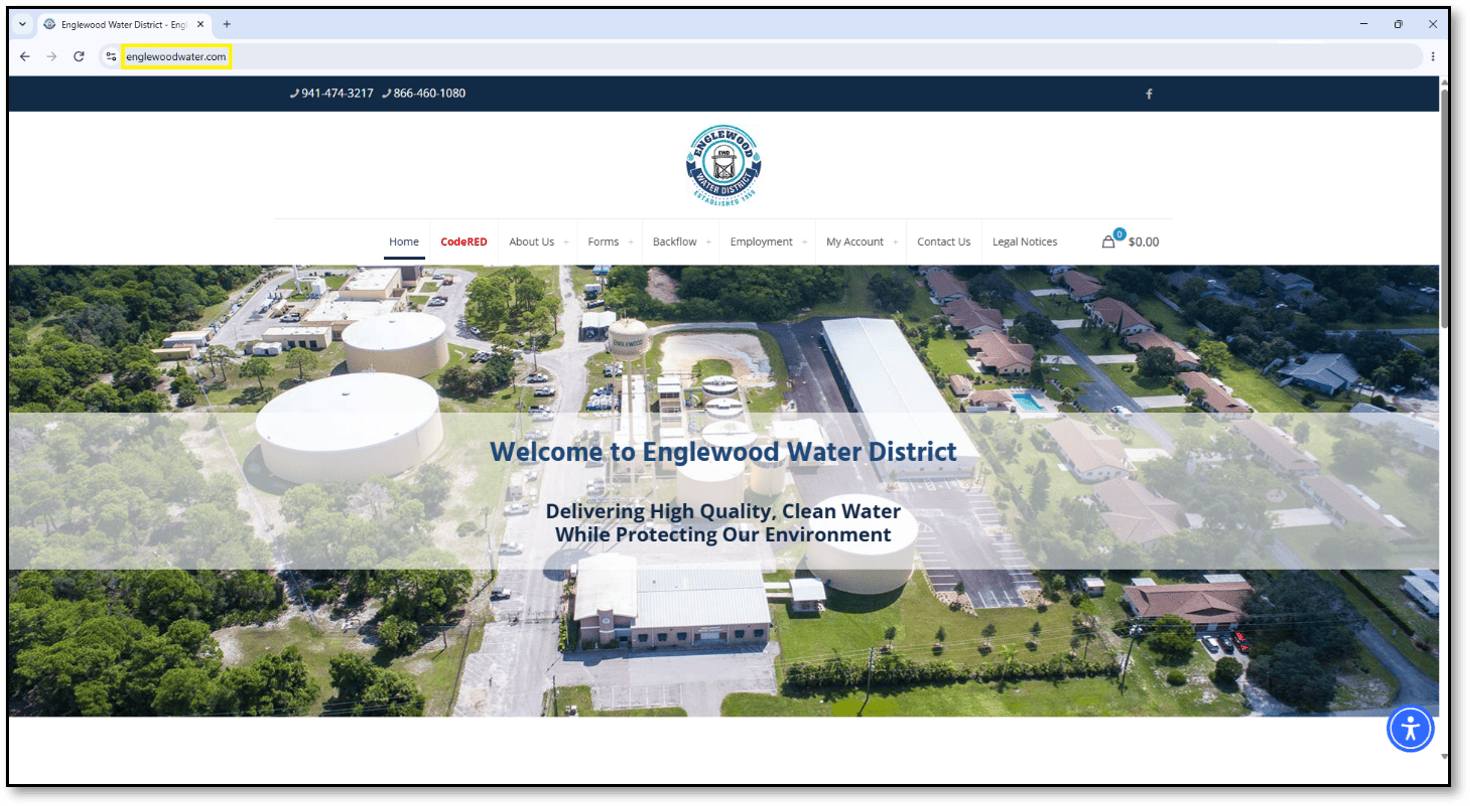
- Select My Account. Once the website loads, select My Account from the menu at the top of the page. This will take you to the Online Account Access page.


- Select Click Here to access your account online. On the Online Account Access page, select Click Here to access your account online. This will take you to the Login
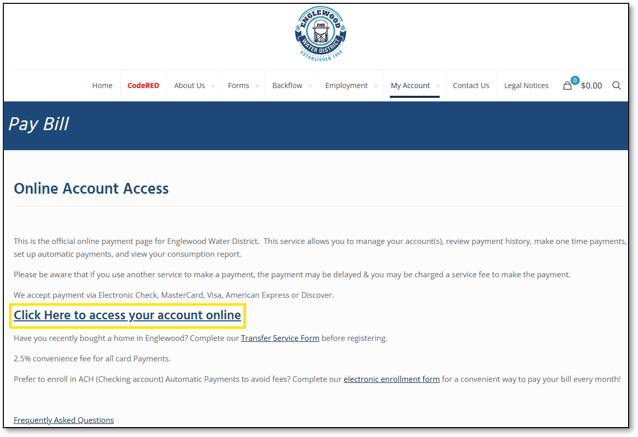
- Select New User. On the Login page, select New User at the top right of the page. This will take you to the Create New User

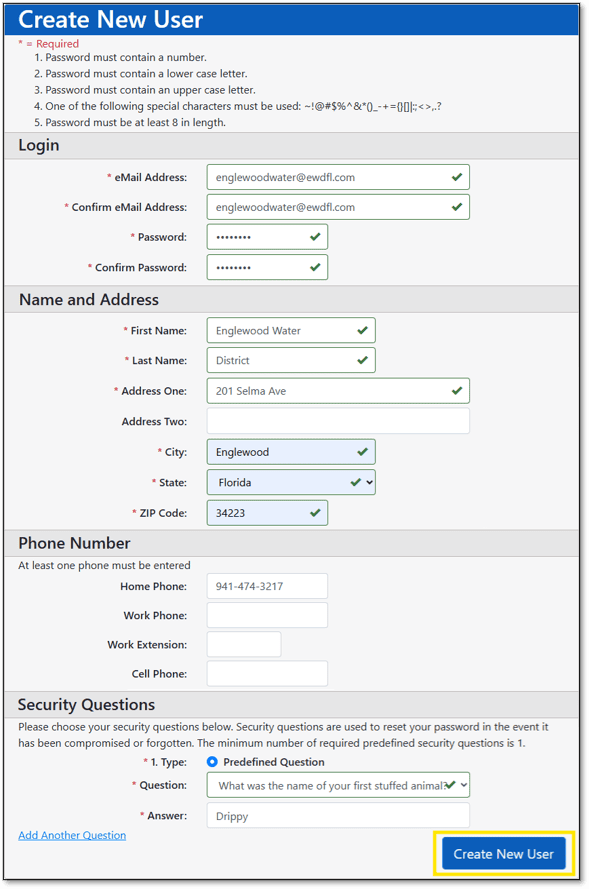
- Create your user account. On the Create New User page, enter the required information. Fields marked with an * are required. Select Create New User at the bottom of the page.
- Check your email. After you create your user account, a message will appear stating, “Your user has been created. A confirmation eMail has been sent to the eMail address specified containing a link to enable your user.” Go to the email inbox for the email address you used to create your user account.

- Verify your email address. In your email inbox, look for an email titled eMail Address Verification from noreply@ewdfl.com. Open the email and select the enable your account link. If you do not see the email, check your Spam or Junk folder. This will take you to the Enable Email page.

- Select Login. On the Enable Email page, select Login. This will take you to the User Login
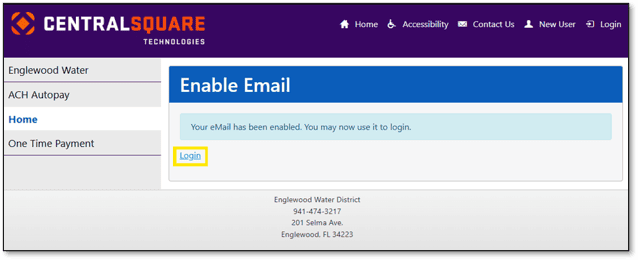
- Log in to your user account. On the User Login page, enter the eMail Address and Password you used when creating your user account. Select Logon.
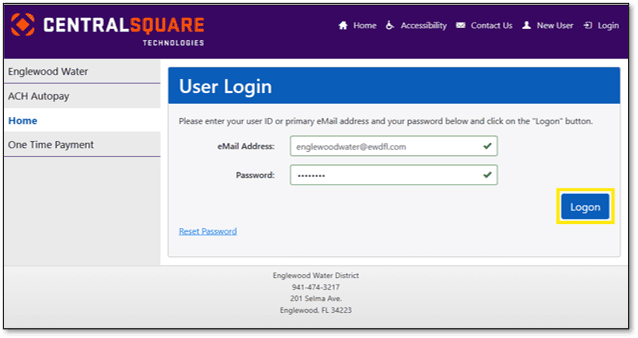
- Enter the verification code. The User Verification Code page will appear. Go to your email inbox and look for an email titled User Login Verification from noreply@ewdfl.com.
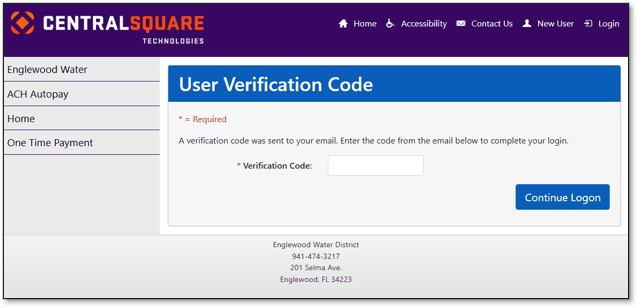
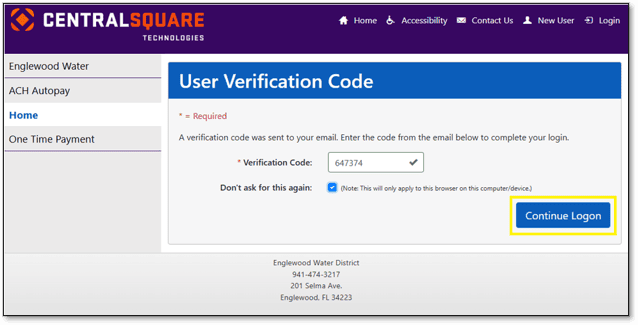
- Open the email and find the six-digit Verification Code. If you do not see the email, check your Spam or Junk folder.

- On the User Verification Code page, enter the six-digit code in the Verification Code field and select Continue Logon.

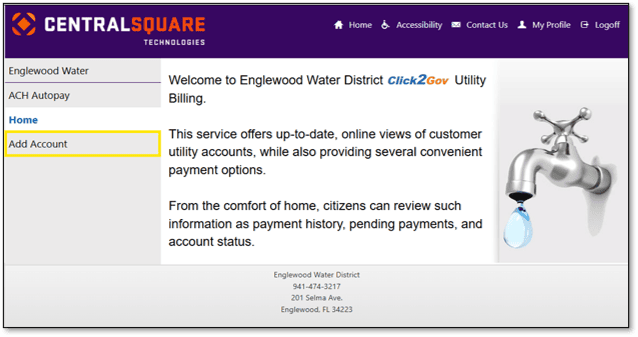
- Select Add Account. Once you are logged in, select Add Account from the menu on the left side of the screen. This will take you to the Add Account

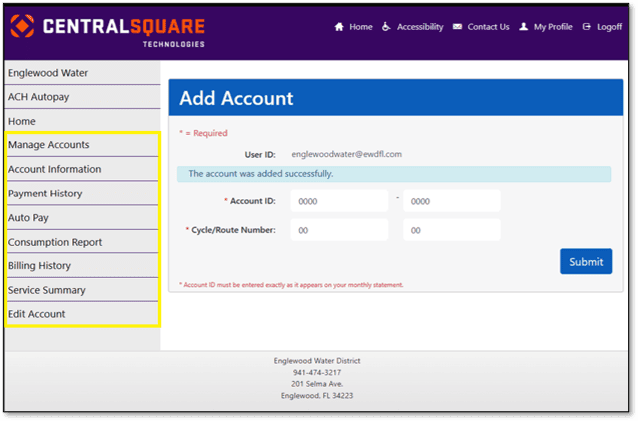
- Add your Englewood Water District account. On the Add Account page, enter the information exactly as it appears on your Englewood Water District monthly bill.



- Account ID: Enter the numbers before the dash in the first field and the numbers after the dash in the second field.
- Cycle: Enter the two-digit Cycle number in the first field.
- Route Number: Enter the two-digit Route Number in the second field.
After all information has been entered, select Submit.
- Confirm your account was added. Once your Englewood Water District account has been added, a message will appear stating, “The account was added successfully.” Additional options will appear in the menu on the left side of the screen. You can now use your online account to view and manage your account and set up Auto Pay using a credit card.
Keep your email address and password in a safe place so you can use them the next time you log in.
How to reset your password
Go to the Englewood Water District website at www.englewoodwater.com.

Select My Account from the menu at the top of the page.

Click Click Here to Access Your Account Online.

Select Login at the top of the screen.

Click the Reset Password link.

Enter your email address and choose one of the following options:
- Send Email – A password reset link will be sent to your email address.
- Answer Security Questions – Use the security questions associated with your account to reset your password.
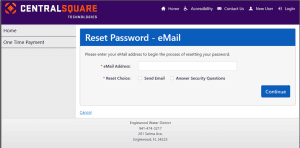
Option 1: Reset Password by Email
Enter Email Address, click Send Email, then select Continue.

Open the password reset email and click the reset link.


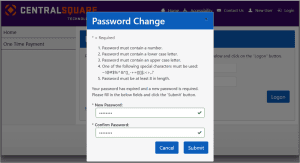
Enter your new password twice, following the password requirements shown on the screen. Click Submit.
When prompted, enter the verification code sent to your email address and select Continue Logon.

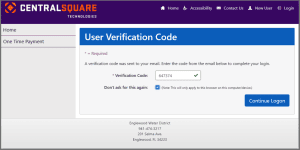
Optional: Select Don’t ask for this again if you are using a trusted personal device.
Option 2: Reset Password Using Security Questions
Select Answer Security Questions and click Continue.

Answer the security questions associated with your account and click Continue.
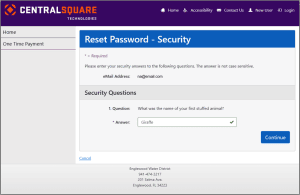
Enter your new password twice, following the password requirements shown on the screen. Click Continue.
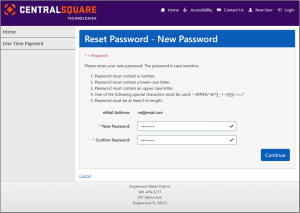
On the confirmation screen, select Login.

Enter your email address and new password, then click Logon.
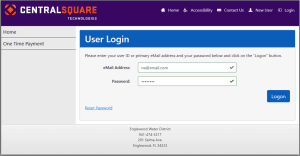
When prompted, enter the verification code sent to your email address and select Continue Logon.

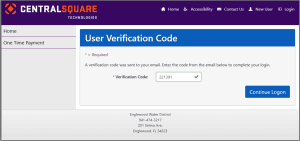
Enroll in Auto Pay
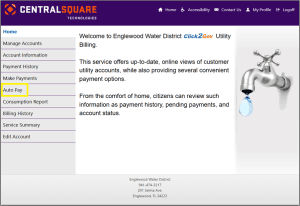
After logging in, select Auto Pay from the menu on the left side of the screen.
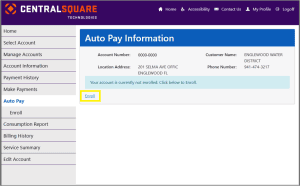
Click Enroll.
Select Other CC.

Enter your credit card information. Click Save to complete enrollment.

You may contact the Englewood Water District at (941) 474-3217 or visit englewoodwater.com for additional information.